Run a Meta ad campaign for ticket sales
Once Meta is connected to Esora, a campaign in Ads Manager can optimise for ticket purchases instead of clicks. This page covers only the settings that differ from any other campaign you run: four fields and one link. Budget, audience, placements and the creative are yours to set as you normally do.
1. Check that Meta is connected
Section titled “1. Check that Meta is connected”At esora.app/manage, open Settings → Integrations. The Meta ads section should show your ad account, your pixel, and Last sale sent to Meta.
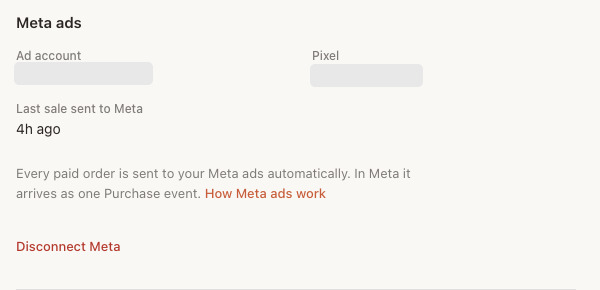
If it shows Connect Meta instead, connect first: Meta ads explains the two taps. Note the pixel’s name; you pick it in step 4.
2. Make a link for the ad
Section titled “2. Make a link for the ad”Open the event in the console and press Share event, or go to Promote → Tracking links. Type where the link will be used, for example “Meta ad · autumn concert”, and press Create link, then Copy link.
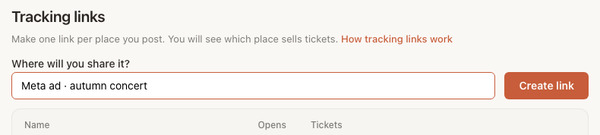
This is the address the ad will send people to. It opens your event page in the buyer’s language, and every ticket bought through it shows on your Sales page under the link’s name, so you see what the ad sold. The plain event address works too, but then the sales cannot be traced to the ad. Tracking links has the details.
3. Campaign objective: Sales
Section titled “3. Campaign objective: Sales”In Ads Manager, create the campaign with the Sales objective.
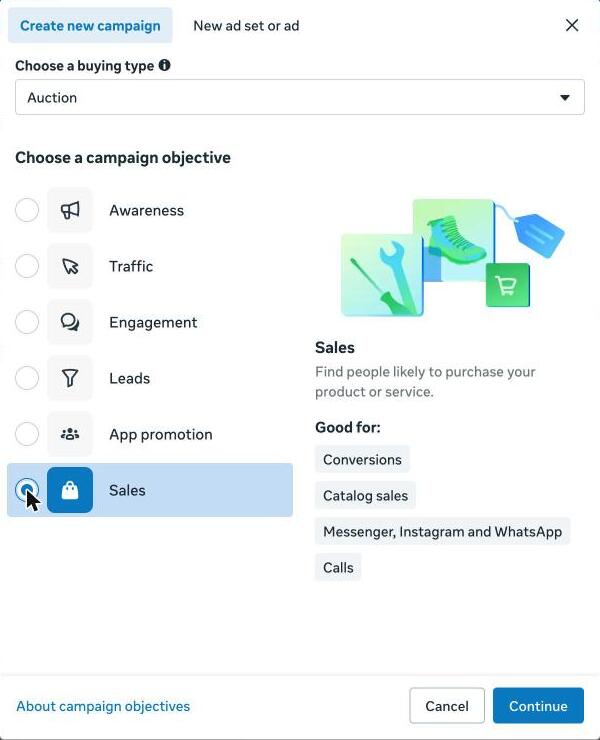
Sales tells Meta that a result is a purchase, not a click or a view. Name and budget as you normally do.
4. Ad set: your pixel and the Purchase event
Section titled “4. Ad set: your pixel and the Purchase event”In the ad set’s conversion section:
- Conversion location: Website. People buy on your Esora event page.
- Performance goal: Maximize number of conversions.
- Dataset: the pixel from step 1. If Esora created it for you, it is called “Esora”.
- Conversion event: Purchase. This is the event Esora sends for each paid order.
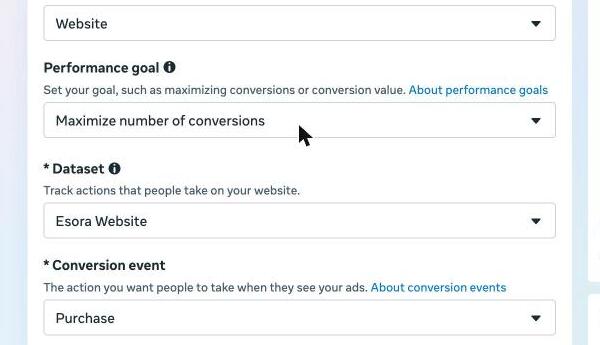
Audience, schedule and placements as you normally do.
5. Ad: the link as the destination
Section titled “5. Ad: the link as the destination”In the ad’s Destination, keep Website and paste the link from step 2 into Website URL.
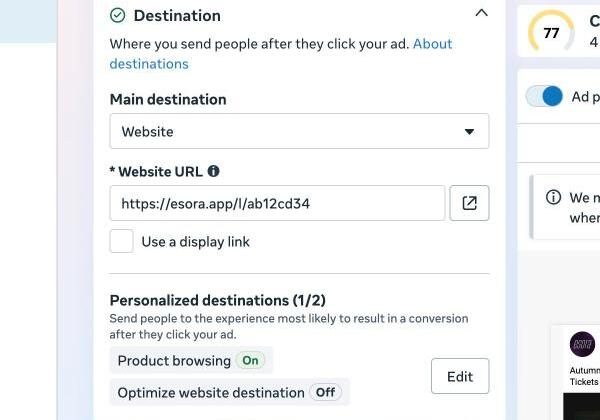
Media, text and the call to action as you normally do, then publish.
6. Where the sales show up
Section titled “6. Where the sales show up”In Ads Manager, the two columns to watch are Purchases and Cost per purchase. If they are not in your table, open Columns → Customize columns, search for “purchase” and tick both.
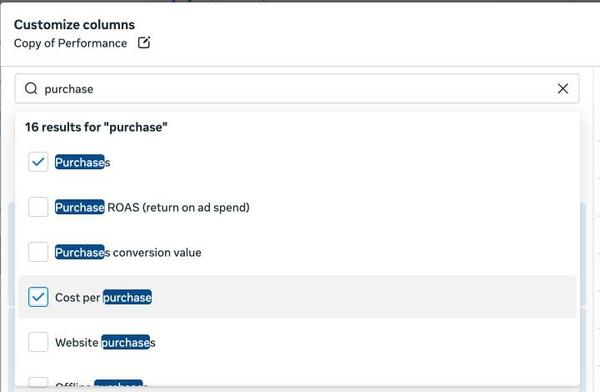
One purchase is one order, however many tickets are on it, so cost per purchase is your cost per order.
On Esora, open the event’s Sales page and look under Where buyers came from. The link from step 2 shows the tickets and the money the ad brought in, and the Your Meta ads line shows the tickets Esora traced to your ads next to what Meta says you spent. The figures refresh every hour.

Esora’s count and Meta’s count differ, and both are right: Purchases Meta counts explains why.
Questions? Get in touch.